
Private channels allow selected members of a team to collaborate in a restricted space. Unlike standard channels, membership is managed separately, and only users added to the private channel can access its conversations and files.
As the number of teams increases, keeping track of private channel members and owners can become difficult. A private channel membership report helps administrators review who has access, identify channels without enough owners, and remove users who no longer require access. This guide explains how to get private channel membership details in Microsoft Teams.
How to List Private Channel Members in Microsoft Teams
The best way to review private channel membership depends on how much information you need. For a quick check of a specific channel, the Teams admin center is usually enough. However, when the review involves multiple teams or the entire tenant, PowerShell offers a faster and more practical approach. Let’s look at both options.
View Private Channel Membership in the Teams Admin Center
The Microsoft Teams admin center provides a graphical way to review private channels and their members.
- Sign in to the Microsoft Teams admin center.
- Go to Teams > Manage teams.
- Select the team you want to review.
- Open the Channels tab to view the channels associated with that team.
- Filter Type = Private to display only private channels.
- Select a private channel to review its members and owners.
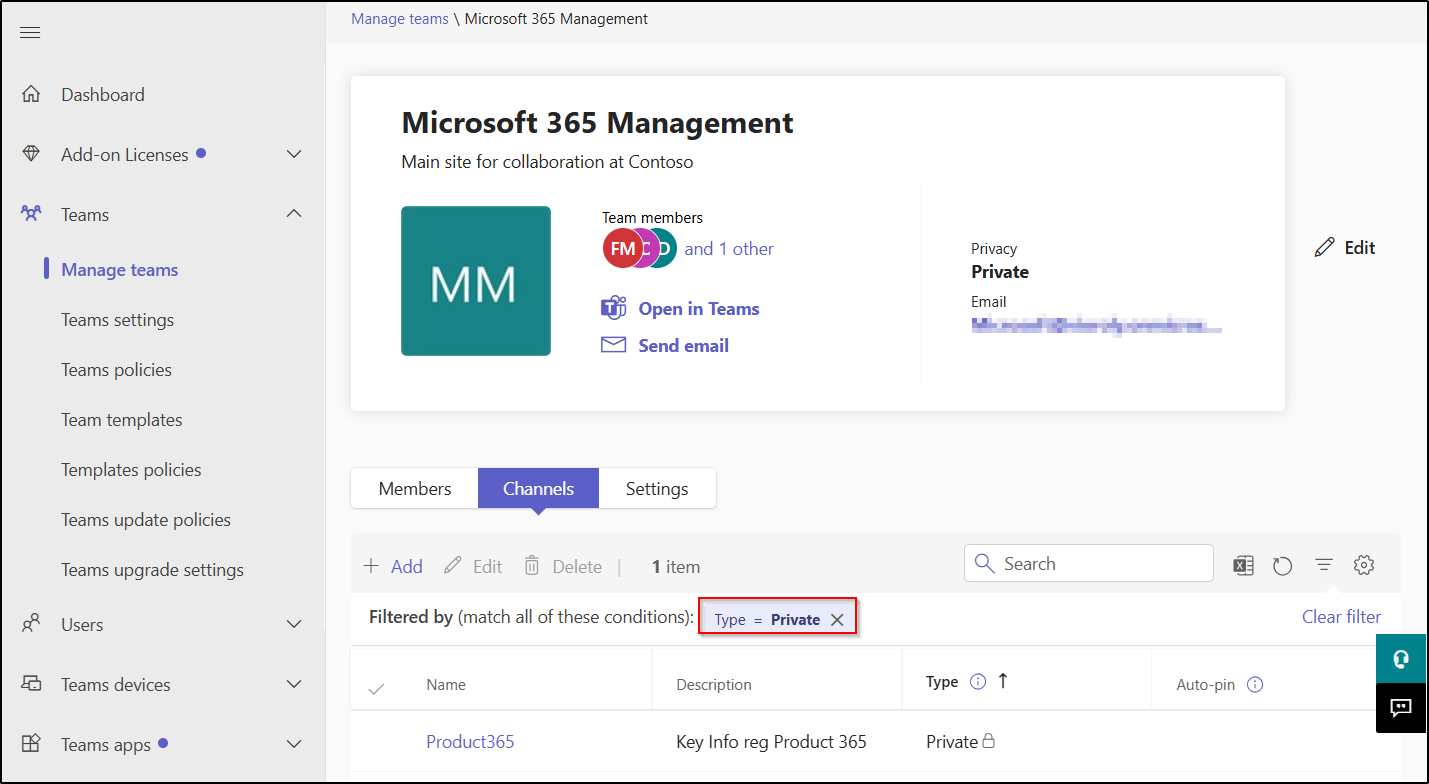
This method works well when you need to inspect a single team or channel. However, it becomes time-consuming when you need to review private channel membership across multiple teams because each team must be checked separately.
Export Private Channel Membership Report in MS Teams Using PowerShell
The following script scans every Microsoft team in the tenant, identifies its private channels, and retrieves the members and owners assigned to each channel.
# 1. Clear out any previous script data
$Report = @()
# 2. Retrieve all teams from the tenant
Write-Host "Fetching all teams from the tenant..." -ForegroundColor Cyan
$AllTeams = Get-Team
# 3. Loop through each team
foreach ($Team in $AllTeams) {
    Write-Host "Checking Team: $($Team.DisplayName)" -ForegroundColor Yellow
    # Get only the private channels for this team
    $PrivateChannels = Get-TeamChannel -GroupId $Team.GroupId -MembershipType Private
     foreach ($Channel in $PrivateChannels) {
        Write-Host "  --> Found Private Channel: $($Channel.DisplayName)" -ForegroundColor Green
           try {
            # Attempt to gather members
            $Members = Get-TeamChannelUser -GroupId $Team.GroupId -DisplayName $Channel.DisplayName -ErrorAction Stop
                  if ($null -eq $Members -or $Members.Count -eq 0) {
                # Logs the channel even if empty or orphaned
                $Report += [PSCustomObject]@{
                    TeamName           = $Team.DisplayName
                    TeamGroupId        = $Team.GroupId
                    PrivateChannelName = $Channel.DisplayName
                    ChannelId          = $Channel.Id
                    MemberName         = "NO ACTIVE MEMBERS / ORPHANED"
                    MemberUPN          = "N/A"
                    ChannelRole        = "N/A"
                }
            } else {
                # Logs each member found
                foreach ($Member in $Members) {
                    $Report += [PSCustomObject]@{
                        TeamName           = $Team.DisplayName
                        TeamGroupId        = $Team.GroupId
                        PrivateChannelName = $Channel.DisplayName
                        ChannelId          = $Channel.Id
                        MemberName         = $Member.Name
                        MemberUPN          = $Member.User
                        ChannelRole        = $Member.Role
                    }
                }
            }
        } catch {
            # Logs the channel if an access/permission error occurs
            $Report += [PSCustomObject]@{
                TeamName           = $Team.DisplayName
                TeamGroupId        = $Team.GroupId
                PrivateChannelName = $Channel.DisplayName
                ChannelId          = $Channel.Id
                MemberName         = "ERROR FETCHING MEMBERS"
                MemberUPN          = $_.Exception.Message
                ChannelRole        = "ERROR"
            }
        }
    }
}
# 4. Export results to CSV
if ($Report.Count -gt 0) {
    $OutputPath = "$env:USERPROFILE\Desktop\Teams_Private_Channel_Membership.csv"
    $Report | Export-Csv -Path $OutputPath -NoTypeInformation -Encoding UTF8
    Write-Host "`n[SUCCESS] Report saved to: $OutputPath" -ForegroundColor Green
} else {
    Write-Host "`n[INFO] No private channels were discovered." -ForegroundColor Cyan
}
The report provides more than a list of private channel members and owners. It also helps identify orphaned private channels with no active members or owners. These channels are clearly marked as No active members/Orphaned, so administrators can quickly find channels that may no longer be in use and decide whether they should be reviewed, reassigned, or removed.
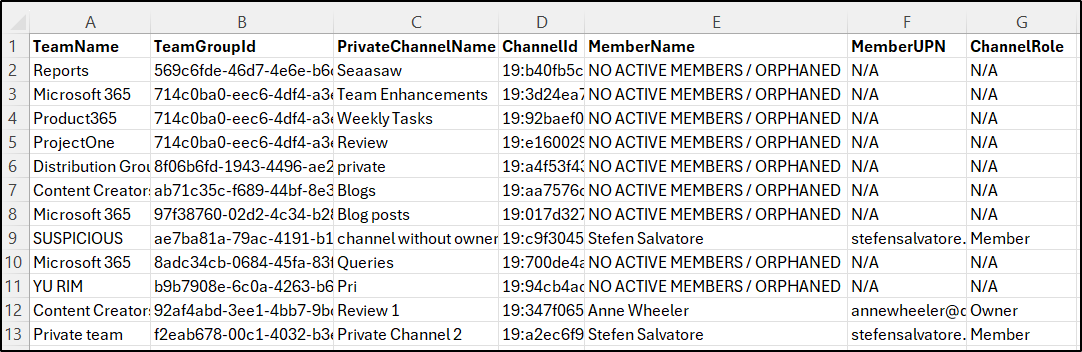
Each private channel uses a dedicated SharePoint site to store its files, so reviewing channel membership also helps ensure that only the right users can access its documents.
Running this report periodically can help administrators remove outdated access, address ownership gaps, and maintain better control over private channel data!
